

Welcome!#
CCN Software Workshop, Feb 2026#
We are excited to see everyone at the Flatiron Center for Computational Neuroscience workshop on using open source packages to analyze and visualize neural data! You should have received an email with logistical information, including the schedule and link to the slack channel where we will be communicating the workshop. If you did not receive this email, please let us know!
Over the course of this two-day workshop, we will walk you through the notebooks included on this site in order to demonstrate how to use pynapple and NeMoS to analyze and visualize your data.
Before the workshop, please try to follow the setup instructions below to install everything on your personal laptop. If you run into issues, first check the troubleshooting section on this page to see if there’s a solution for your problem and then, if you are unable to solve the problem, come to our installation help session at the Flatiron Institute, 160 5th Ave, in the 3rd floor conference center, before breakfast on Tuesday, February 3rd, 2026. We’ll be there starting at 8:30am!
We will use jupyter lab throughout the workshop. If you are unfamiliar with jupyter lab, please check out the “Intro to Jupyter Lab” page.
This website#
This website contains rendered versions of the notebooks we will be working through during this workshop. Several different versions of the notebooks are presented in the sidebar:
The
Full notebookssection shows versions of the live coding notebook that include explanatory text, code, and plots. These are intended for you to check out after the workshop or to send to your labmates, so you can see everything that we covered.The
Group projectssection contains the notebooks you will be working through during the group project sections of the workshop. They contain some pre-filled code, some notes, and a lot of problems that you will be solving as a group. If you follow the setup instructions below, you will have editable copies of these notebooks on your laptop, and you are expected to follow along using these notebooks.The
Limited live coding notebookssection contains two different versions of the live coding notebooks:For userscontains the notebooks you attendees should be working though. These notebooks have some code pre-filled, as well as brief notes to help orient you. If you follow the setup instructions below, you will have editable copies of these notebooks on your laptop, and you are expected to follow along using these notebooks.For presentersis there to help if you miss something or fall behind. These notebooks includes the completed code blocks (along with some notes), so you can catch up.
We also have completed versions of the group projects notebooks; if you are interested, ask us after the workshop and we will send them to you.
Setup#
Before the workshop, please try to complete the following steps. If you are unable to do so, we have an installation help session at the Flatiron Institute, 160 5th Ave, in the 3rd floor conference center, before breakfast on Tuesday, February 3rd, 2026. We’ll be there starting at 8:30am!
Make sure you have
gitinstalled. It is installed by default on most Mac and Linux machines, but you may need to install it if you are on Windows. These instructions should help.Clone the github repo for this workshop:
git clone https://github.com/flatironinstitute/ccn-software-feb-2026.git
Create a virtual environment with python 3.12#
There are many ways to set up a python virtual environment. You can use your favorite way of doing so. If you don’t have a preference or don’t know what to do, choose one of the following:
Install
uvby running:curl -LsSf https://astral.sh/uv/install.sh | sh
Restart your terminal to make sure
uvis available.Install python 3.12:
uv python install 3.12
Navigate to your cloned repo:
cd ccn-software-feb-2026
There’s no need to create a virtual environment, since uv will handle that for you!
Open up powershell, then:
Install
uv:powershell -ExecutionPolicy ByPass -c "irm https://astral.sh/uv/install.ps1 | iex"
Install python 3.12:
uv python install 3.12
Navigate to your cloned repo:
cd ccn-software-feb-2026
There’s no need to create a virtual environment, since uv will handle that for you!
Warning
You may receive an error saying “running scripts is disabled on this system”. If so, run Set-ExecutionPolicy -Scope CurrentUser and enter Unrestricted, then press Y.
You may have to do this every time you open powershell.
Warning
Due to recent changes to Anaconda’s Terms of Service, the Simons Foundation cannot use the defaults conda channel and it is blocked on all Flatiron Institute wireless networks. You need to specify conda-forge instead (which is community-managed and open to all). The following instructions do so, but if you follow your normal workflow, you may hit issues.
If you have persistent issues with this, try using uv instead, which does not have this issue.
Install miniforge if you do not have some version of
condaormambainstalled already.Open up a terminal and create the new virtual environment by running (WINDOWS USERS: use the
Miniforge PromptorAnaconda Promptthat comes packaged with the miniforge/anaconda/miniconda install):conda create --name ccn-feb26 pip python=3.12
Activate your new environment and navigate to the cloned repo:
conda activate ccn-feb26
cd ccn-software-feb-2026
Install dependencies and setup notebooks#
The following instructions will make sure everything is installed correctly, and will download the data and notebooks used during the workshop.
Run our setup script to download data and prepare the notebooks. With
uv, this will download all the required packages and dependencies as well:
uv run scripts/setup.py
Confirm the installation and setup completed correctly by running:
uv run scripts/check_setup.py
Install the required dependencies. This will install pynapple and nemos, as well as jupyter and several other packages.
pip install -e .
Run our setup script to download data and prepare the notebooks:
python scripts/setup.py
Confirm the installation and setup completed correctly by running:
python scripts/check_setup.py
If check_setup.py tells you setup was successful, check that you can run jupyter lab notebooks/live_coding/02_current_injection-users.ipynb and run the first few cells (up until the one containing path = workshop_utils.fetch_data("allen_478498617.nwb")). If that all works, then you’re good to go. Otherwise, please come to the installation help session Tuesday morning, so everyone is ready to get started Thursday morning.
After doing the above, the data/ and notebooks/ directories within your local copy of the ccn-software-feb-2026 repository will contain the NWB files and jupyter notebooks for the workshop.
On the day of the workshop, we will run through the notebooks in the order they’re listed on this website. To open them, navigate to the notebooks/ directory, activate your virtual environment (if using conda/mamba), and start jupyter lab:
cd path/to/ccn-software-feb-2026/notebooks
uv run jupyter lab
cd path/to/ccn-software-feb-2026/notebooks
conda activate ccn-feb26
jupyter lab
Jupyter Lab settings
In older versions of Jupyter Lab, there was an issue within (especially long) notebooks where scrolling within a notebook might cause erratic jumps. This problem has been addressed in newer versions of Jupyter Lab, but this fix might not be enabled if you installed Jupyter Lab for the first time (in any environment) before the fix was implemented. To ensure that the setting is enabled, from within Jupyter Lab, navigate to Settings > Settings Editor. At the top of the left sidebar, search for the setting Windowing mode and make sure it is set to contentVisibility. If you’re installing Jupyter Lab for the first time during this workshop, this should be set by default.
Optional: Install pynaviz#
During the first day, we will demonstrate pynaviz, a new package under development which provides interactive, high-performance visualizations designed to work seamlessly with Pynapple time series and video data. It allows synchronized exploration of neural signals and behavioral recordings.
This installation section is optional. If you would like to run pynaviz on your machine, follow the steps outlined here, but if you do not, you will still be able to watch and follow along. As pynaviz is under active development, there is a higher chance that you will have installation issues here (especially if you have a Windows machine). If this installation fails and you would like help trying to get it working, come to our installation help session at the Flatiron Institute, 160 5th Ave, in the 3rd floor conference center, before breakfast on Tuesday, February 3rd, 2026. We’ll be there starting at 8:30am!
Install pynaviz with the pyqt backend:
cd path/to/ccn-software-feb-2026
uv pip install "pynaviz[qt]"
Run
scripts/test_pynaviz.py.
uv run scripts/test_pynaviz.py
cd path/to/ccn-software-feb-2026
conda activate ccn-feb26
pip install "pynaviz[qt]"
Run
scripts/test_pynaviz.py.
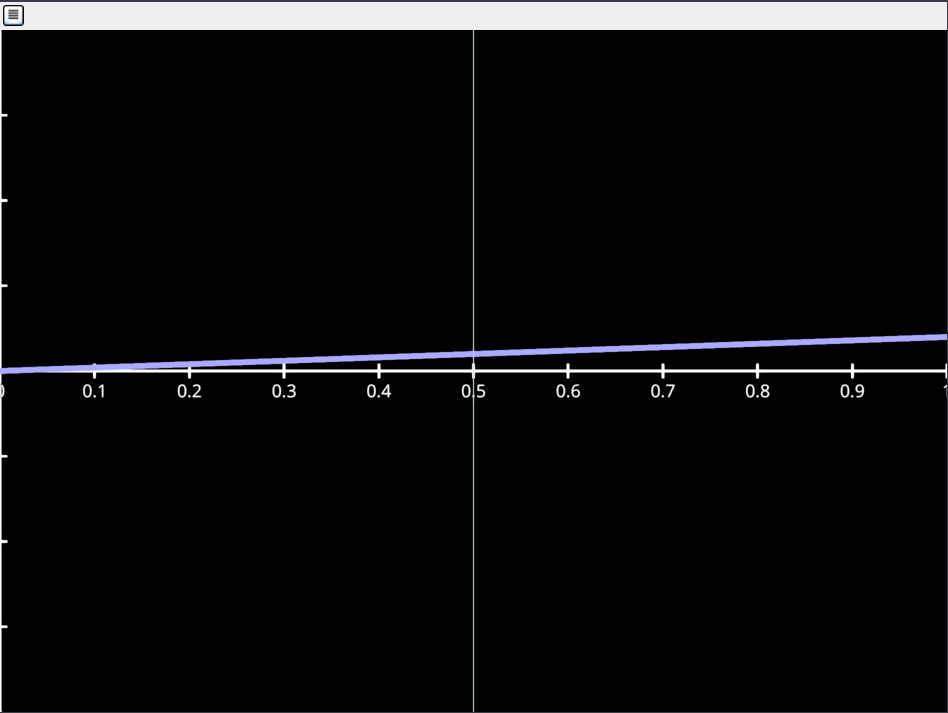
python scripts/test_pynaviz.pyYou should see a window that looks like the following pop up, display for about 5 seconds, and then close.
Troubleshooting#
When creating the conda environment, you may get errors related to accessing the
defaultschannel. Due to recent changes to Anaconda’s Terms of Service, the Simons Foundation cannot use thedefaultsconda channel and it is blocked on all Flatiron Institute wireless networks. You need to specifyconda-forgeinstead (which is community-managed and open to all). (The instructions above should do so.)If you are on Mac and get an error related to
ruamel.yaml(orclang) when runningpip install -e ., we think this can be fixed by updating your Xcode Command Line Tools.On Windows, you may receive an error saying “running scripts is disabled on this system” when trying to activate the virtual environment. If so, run
Set-ExecutionPolicy -Scope CurrentUserand enterUnrestricted, then pressY. (You may have to do this every time you open powershell.)If you have multiple jupyter installs on your path (because e.g., because you have an existing jupyter installation in a conda environment and you then used
uvto setup the virtual environment for this workshop), jupyter can get confused. (You can check if this is the case by runningwhich -a jupyteron Mac / Linux.) To avoid this problem, either make sure you only have one virtual environment active (e.g., by runningconda deactivate) or prependJUPYTER_DATA_DIR=$(realpath ..)/.venv/share/jupyter/to your jupyter command above:JUPYTER_DATA_DIR=$(realpath ..)/.venv/share/jupyter/ jupyter lab
(On Windows, replace
$(realpath ..)with the path to theccn-software-feb-2026directory.)We have noticed jupyter notebooks behaving a bit odd in Safari — if you are running/editing jupyter in Safari and the behavior seems off (scrolling not smooth, lag between creation and display of cells), try a different browser. We’ve had better luck with Firefox or using the arrow keys to navigate between cells.
On Windows + uv: When running the setup script, if you run into an error like:
ImportError: DLL load failed while importing _jax: The specified module could not be found, it is possible that there is an issue with howuvis solving the environment. Try going through the installation withminiforgeandcondainstead.On Windows + conda: if after installing conda the path are not correctly set, you may encounter this error message:
conda : The term 'conda' is not recognized as the name of a cmdlet, function, script file, or operable program. Check the spelling of the name, or if a path was included, verify that the path is correct and try again.
First, make sure you’re running all
condacommands in eitherMiniforge PromptorAnaconda Prompt, depending on which is installed. Otherwise, if you want to use powershell, you can try the following steps:Locate the path to the
condabinfolder. The path should look like:some-folder-path\Miniforge3\condabin.The following powershell command could be useful (note that i am starting form C: as a root, but you can change that):
Get-ChildItem -Path C:\ -Directory -Recurse -Filter "condabin" -ErrorAction SilentlyContinue | Select-Object -ExpandProperty FullName
Temporarily add conda to the paths:
$env:Path += ";some-folder-path\Miniforge3\condabin"
Initialize conda:
conda init powershell
Restart the powershell and check that conda is in the path. Run for example
conda --version.
If you see
sys:1: DeprecationWarning: Call to deprecated function (or staticmethod) _destroy.when runningpython scripts/setup.py, we don’t think this is actually a problem. As long ascheck_setup.pysays everything looks good, you’re fine!If you get an issue during the creation of the conda environment, try making sure the
~/.condarcfile looks like the following (that file might not be created; create it if needed):channels: - conda-forge ssl_verify: false channel_priority: true
If you see an error that mentions SSL verification and are using
conda, add the following line to your~/.condarc:ssl_verify: false. Then restart your terminal and run the command again. (If you are usinguv, I’m not sure how to set this configuration option.)On an ARM-based (newer) Mac using
conda, duringcheck_setup.py, if you getThis version of jaxlib was built using AVX instructions,uninstall using pip and install using conda:pip uninstall jax jaxlib;conda install -c conda-forge jax jaxlib.If not using
conda, not sure how to avoid this issue, you may have to switch.
If you see a
ModuleNotFoundError: No module named '_sqlite3'orModuleNotFoundError: No module named pysqlite2when runningscripts/setup.pyorjupyter lab, this is likely a sign that your python installation was not properly built. Reinstalling the python interpreter may help. How to do this depends on whether you are using uv or conda; come to the installation help session for assistance.
If you have an NVIDIA GPU and jax is configured to use it, when running the import blocks you may get a warning about being out of memory and then a big scary-looking error that says
XlaRuntimeError: INTERNAL: No supported devices found for platofrm CUDA. This happens because the GPU has run out of memory: if you re-run the import block, it will run without a problem and then you can run the rest of the notebook (jax will just use the CPU and so be slightly slower). Alternatively, you can free up space on your GPU, probably by shutting down the kernels of notebooks you are no longer using (NOTE: this is not the same thing as just closing the notebook).By default, jax pre-allocates memory aggressively. We have tried to disable this behavior (by setting the environmental variable
XLA_PYTHON_CLIENT_PREALLOCATE=false), but that depends on runningimport workshop_utilsbeforeimport jaxorimport nemos(this has been done in our notebooks, but you may run into this issue on your own).
If you run an import cell in our notebooks and it hangs for a long time, and then you hit “Stop” and the error says something about permission denied, you have a permission issue with your virtual environment. You should either modify the permissions of the folder containing your environment variable (where this folder is and how this should be done depends on which tool you used and your Operating System), or run
jupyter labwith elevated permissions:On Windows: Open the start menu and right click on “Anaconda Prompt” or “Powershell” (whichever you use) and click “Run as Administrator”. You may also need to open the browser as administrator.
On Mac/Linux: run
sudo jupyter labinstead ofjupyter lab.
If you cannot see the images in the notebooks (e.g., at the top of
02_current_injections-users), runjupyter laboruv run jupyter labwith no arguments from the root directory of the project (i.e., in theccn-software-feb-2026directory, notnotebooks).If you get import errors in the jupyter notebook, you are likely using a different
jupyterthan the one installed in this directory. If you useduvto install the environment, you need to runuv run jupyter labfrom the root directory of the project (i.e., in theccn-software-feb-2026directory). If you usedconda, make sure the environment is activated, and then runjupyter lab.
Binder#
A binder instance (a virtual environment running on Flatiron’s cluster) is provided in case we cannot get your installation working. To access it, click the “launch binder” button in the top left of this site or click here.
You must login with the email address you provided when registering for the workshop. If you get a 403 Forbidden error or would like to use a different email, send Billy Broderick a message on the workshop slack.
Some usage notes:
You are only allowed to have a single binder instance running at a time, so if you get the “already have an instance running error”, go to the binderhub page (or click on “check your currently running servers” on the right of the page) to join your running instance.
If you lose connection halfway through the workshop, go to the binderhub page to join your running instance rather than restarting the image.
This is important because if you restart the image, you will lose all data and progress.
The binder will be shutdown automatically after 1 day of inactivity or 7 days of total usage. Data will not persist after the binder instance shuts down, so please download any notebooks you want to keep.
I will destroy this instance in 2 weeks. You can download your notebooks to keep them after the fact.
You may run out of memory, see comment above.
Full notebooks
Group projects
Limited live coding notebooks